To keep your data as secure as possible we will no longer accept it via email, instead we offer SFTP (secure file transfer protocal) services with the following instructions;
If you are a new customer or have not been provided SFTP credentials. Please contact us and we will supply the necessary credentials.
Once you receive your credentials (hostname, username and password)?
Follow these instructions using an sftp client application (Filezilla or WinSCP) You should only have to go through the setup process once. Future uploads can be handled by returning to the site within the app.
FileZilla on Apple Computers
If you do not already have it, download Filezilla from the Apple Store
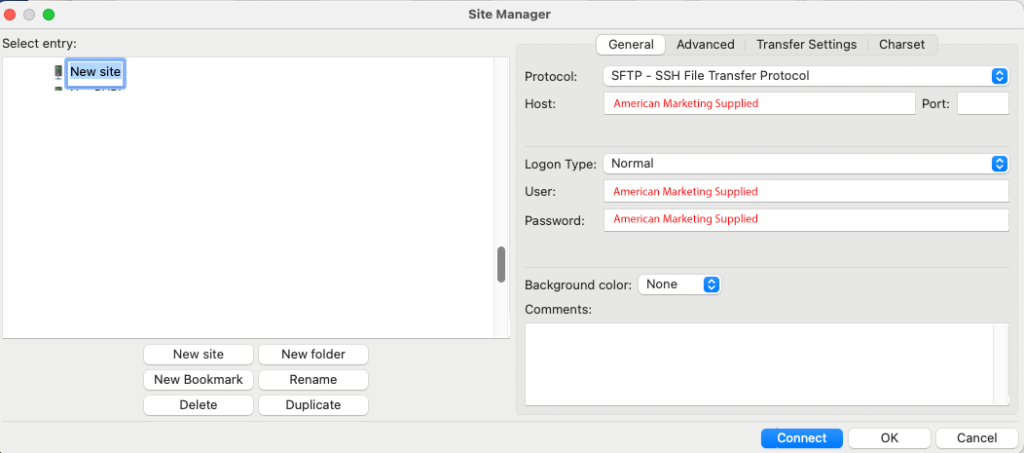
Launch FileZilla Once launched go to File/Site Manager to create a new site and add the hostname, username and password that we sent to you in the fields illustrated below.
Once connected to our SFTP server, find your files you wish to upload in the left hand screen and drag them to the server window on the right hand side to upload. (You can save these settings for future uploads).
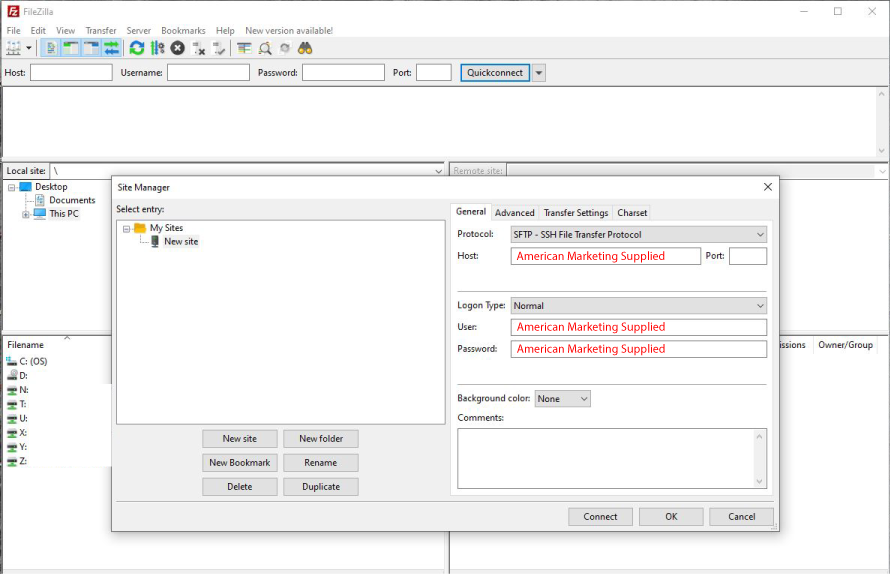
Launch FileZilla Once launched go to File/Site Manager to create a new site and add the hostname, username and password that we sent to you in the fields illustrated below.
Once connected to our SFTP server, find your files you wish to upload in the left hand screen and drag them to the server window on the right hand side to upload. (You can save these settings for future uploads).
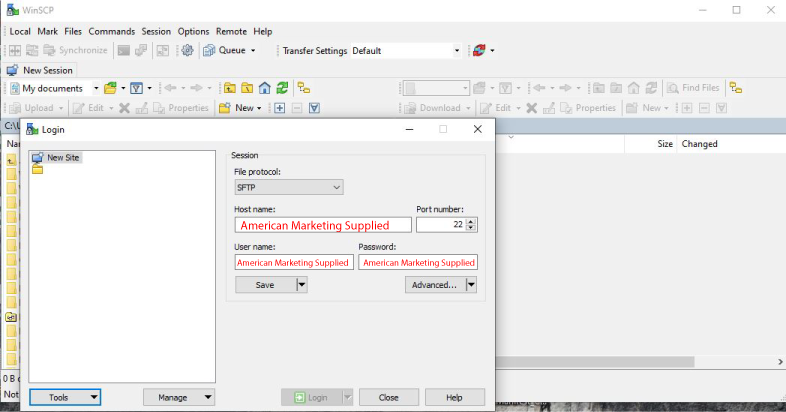
Launch WinSCP Once launched go to Site/Session Manager to create a new site and add the hostname, username and password that we sent to you in the fields illustrated below. (You can save these settings for future uploads).
Once connected (login) to our SFTP server, find your files you wish to upload in the left hand screen and drag them to the server window on the right hand side to upload.